



 1219
1219
Step 1. Log in to your Slate Account
- Navigate to your registry landing page.
- Click the [Sign In] button in the upper right corner.

Step 2. Address Contact is listed as Property Owner or Property Manager
-
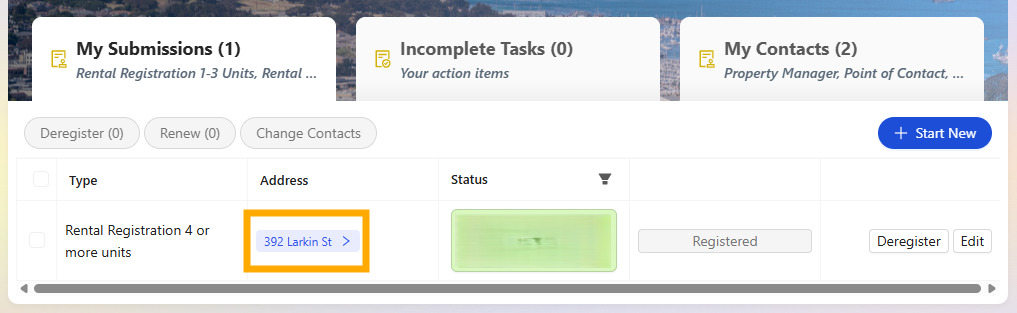
Click on the blue address bar that your property owner or property manager is associated with.
-
This will open the property profile window showing the submitted registration information for the address.
Step 3. Property Profile Window
-
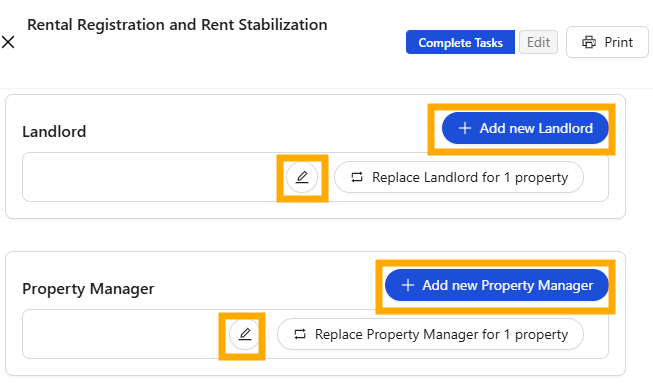
Within the property profile window scroll to the Property Owner or Property Manager section.
-
Select the pencil icon for the contact you would like to update.
Step 4. A. Update Contact Information: Edit the Contact
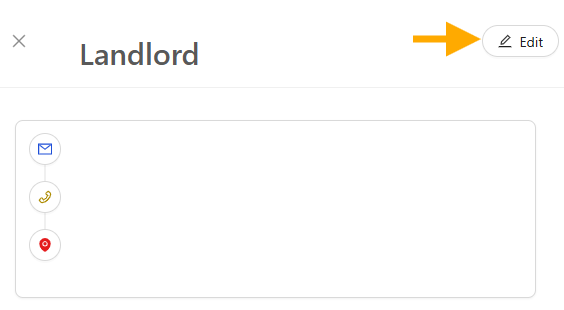
- Select the [Edit] button to update the contact’s information.
- Complete all required fields noted by an asterisk (*).
- Select the [Save] button when finished.
- Note: Wherever this contact is associated with an address, their contact information will be updated
Edit the Contact
Step 4. B. Create New Contact Information: New Contact
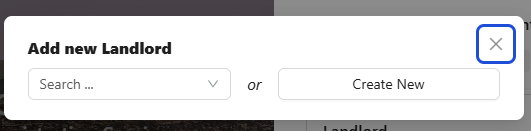
- Select the [+Add new...] button.
- You are able to search for a new contact if they are within the system or create a new contact
- Complete all required fields noted by an asterisk (*).
- Select the [Save] button when finished.
- Note: Wherever this contact is associated with an address, their contact information will be updated
Create a New Entry

If you have any questions or need further assistance, please contact the Tolemi Support Team at [email protected].

